Patient Portal Help
Having trouble viewing your labs or medical records through the Patient Portal? Your browser’s pop-up settings may be preventing the portal from displaying certain information. Select your device and browser below for step-by-step instructions.
Desktop + Google Chrome
1. While in the website portal, click on the lock/ site setting icon on the far-left side of the address bar.
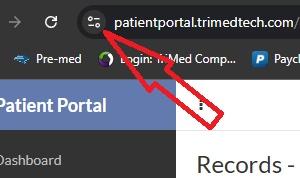
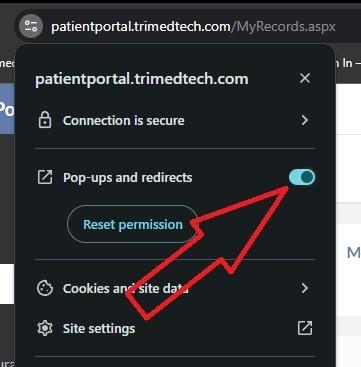
2. Then toggle to enable pop-ups and redirects.
iPhone + Google Chrome
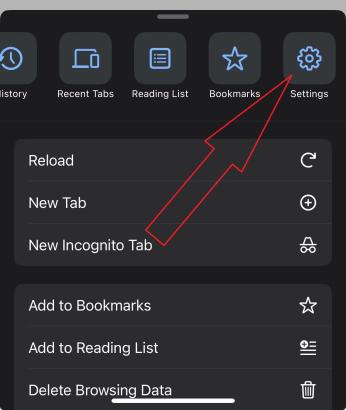
1. Click on three dots at the bottom-right corner.
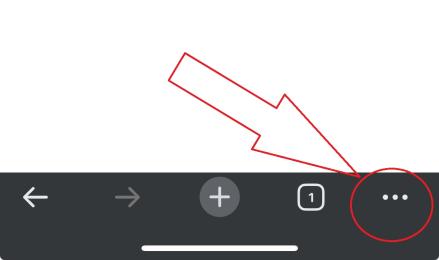
2. Then select “Settings”.
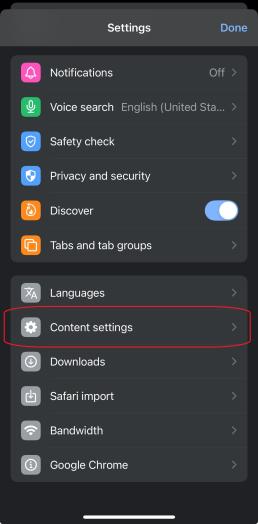
3. Scroll down to and select content setting.
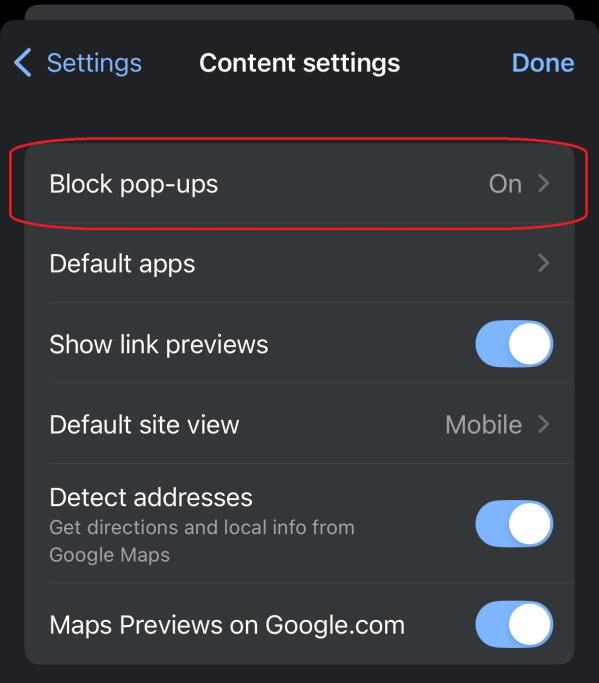
4. Finally, click on Block pop-ups and disable it.
Android + Google Chrome
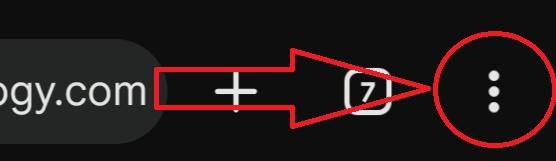
1. Click on the three dots at the top-right corner end of the address bar.
2. Scroll down to and click on settings.
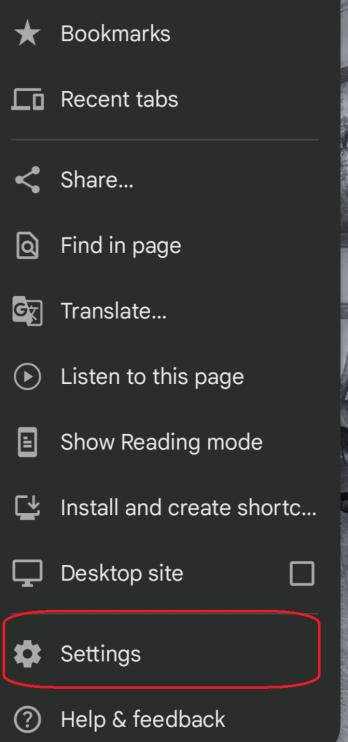
3. Type “Pop-ups” in the settings search bar. Then Select Pop-ups and redirects.
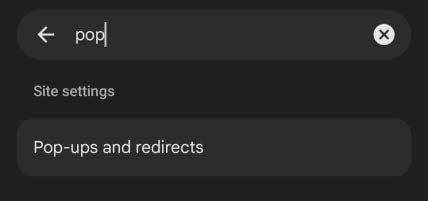
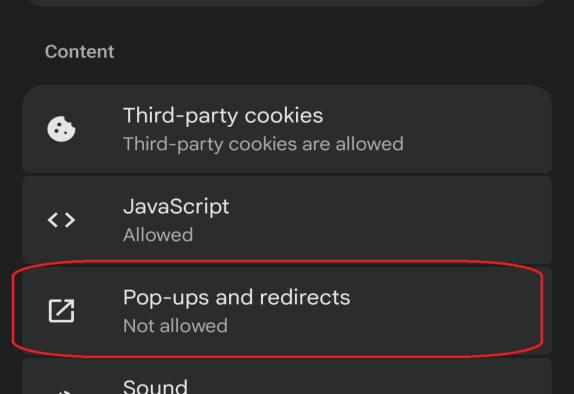
4. Click on Pop-ups and redirects within Site settings.
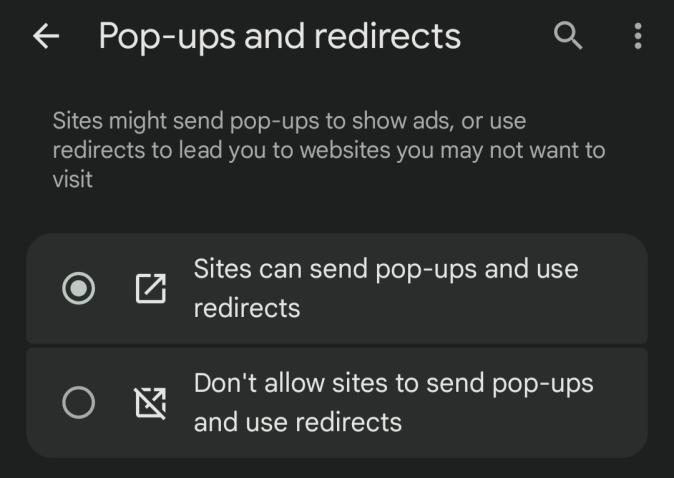
5. Finally, switch to Sites can send pop-ups and use redirects.
iPhone + Safari
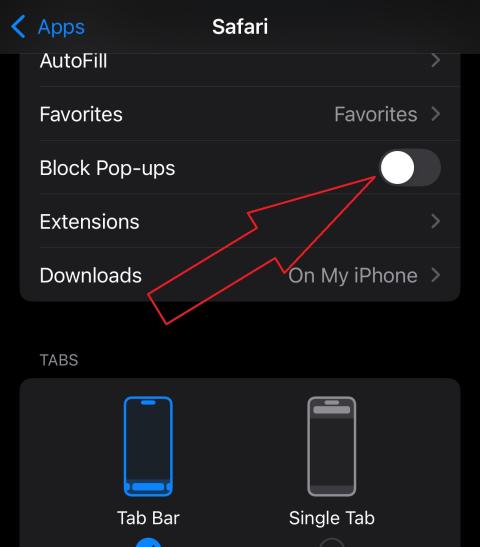
1. Go to your phone settings.
2. In the search bar type in “Pop-ups” and select Block Pop-Ups.
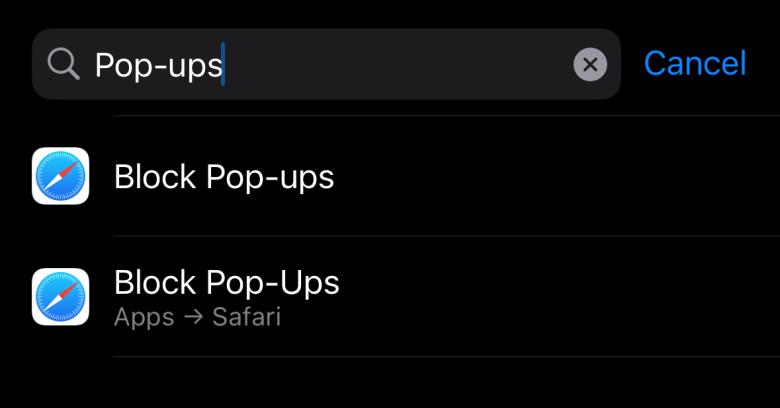
3. Finally, toggle off Block Pop-ups.